Managing clients
Edit a client's name, description, and logo; switch between clients; understand the active-client model.
Once a client exists, day-to-day there are two things you'll do: edit its profile (name, description, logo) and switch between clients to work on different ones.
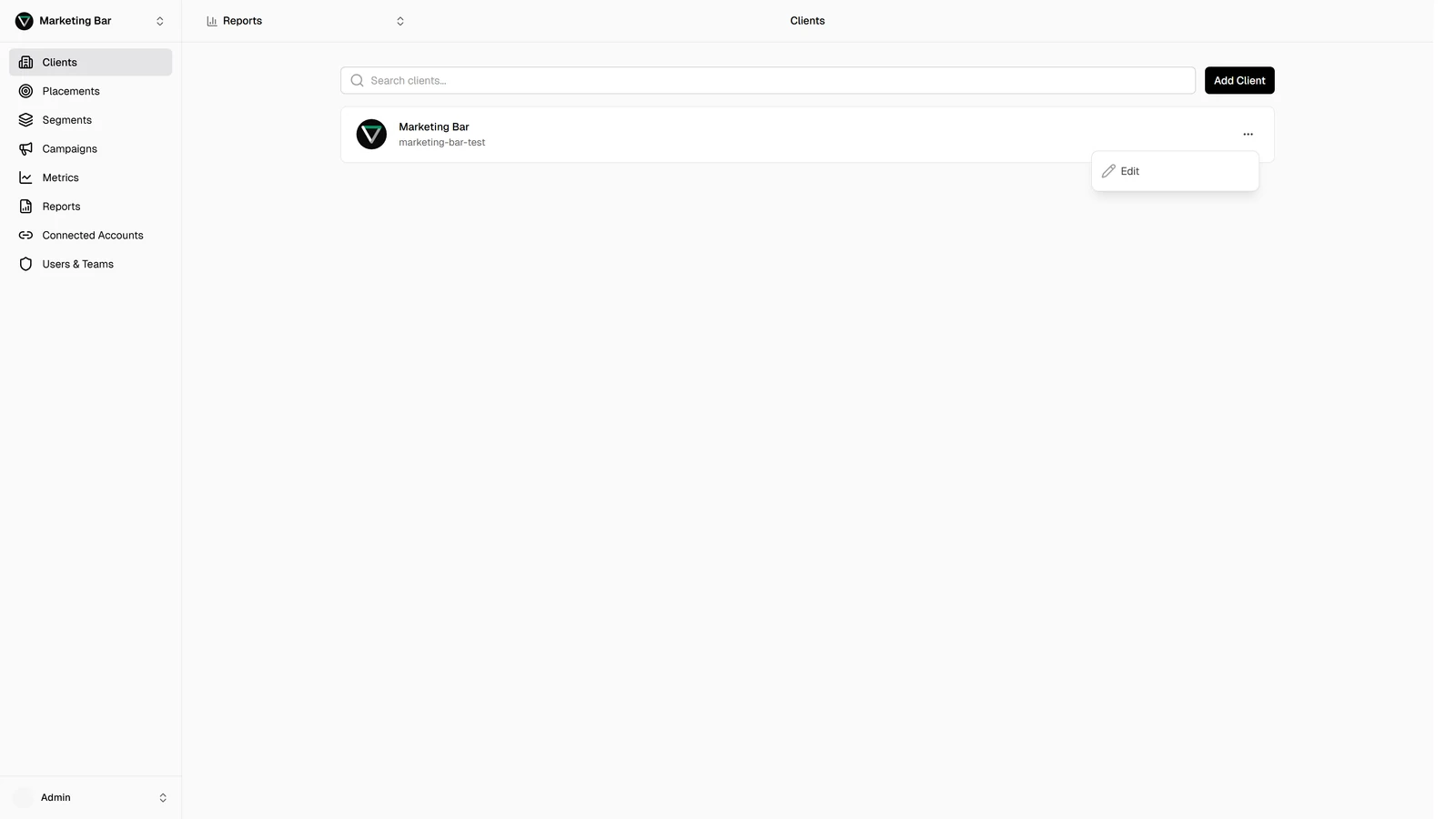
Editing a client
From the Clients page, open the row's overflow menu and choose Edit. The same modal you used to create it opens, pre-filled.
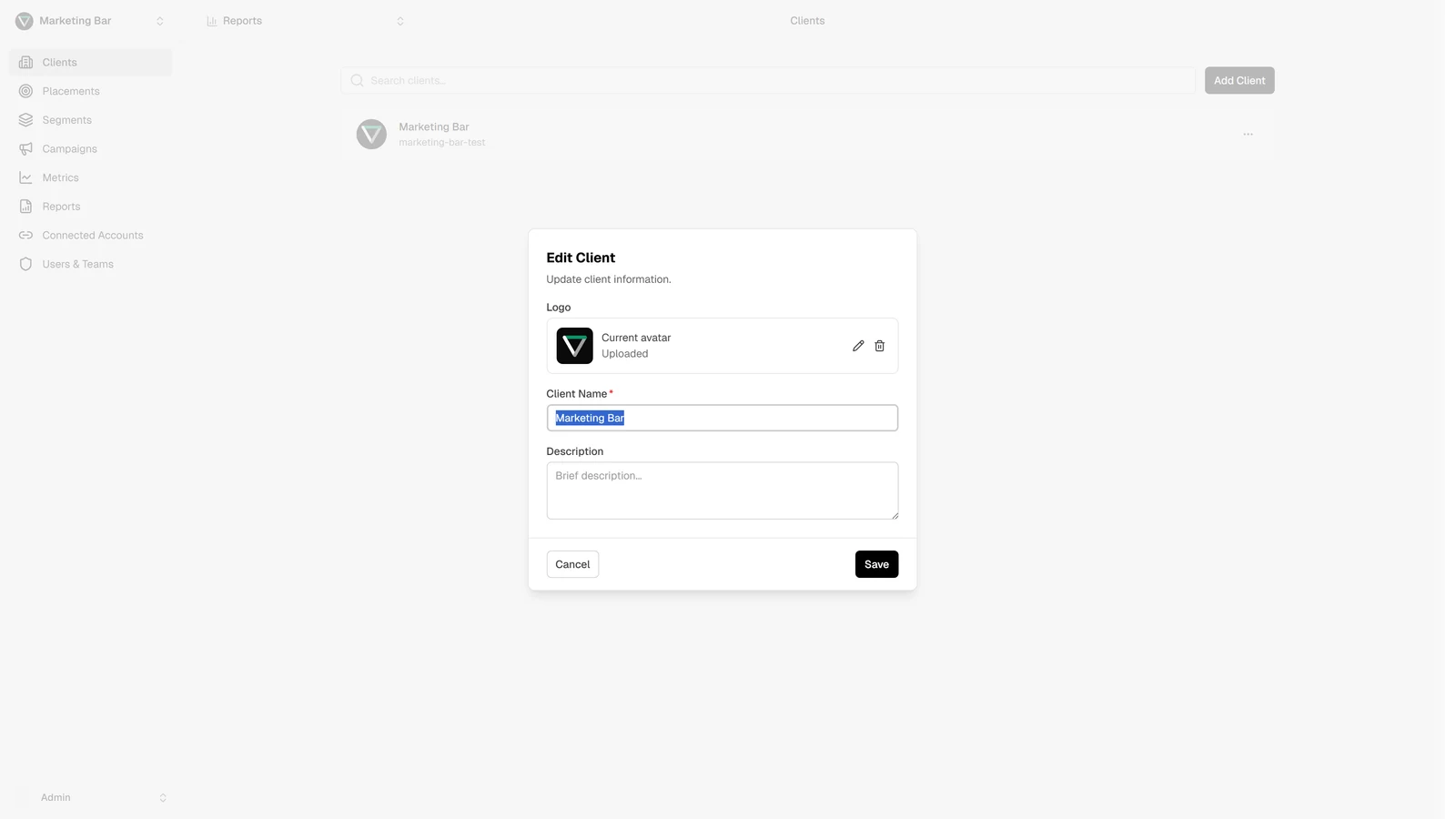
You can change:
- Logo — upload a new image (same crop dialog, same 5 MB / JPG/PNG/WebP/GIF rules), or click the Remove action on the existing logo to clear it.
- Name — the trimmed name takes effect immediately on save; the URL identifier generated at creation does not change.
- Description — free-form text.
Submit saves; the row in the table updates in place.
The client switcher
The client switcher lives in the top-left of the app. Click it to:
- See every client you have access to, with logo and name.
- Search by name (case-insensitive).
- Pick a client to switch to.
When you switch:
- The selection is remembered for next time, so the same client is active when you next open the app.
- If you were on a client-scoped page (placements, campaigns, segments, metrics, reports), Level navigates to that section's page on the new client — typically the Placements page.
- If you were on a global page (connected accounts, users & teams), the URL stays where it is; the active client just changes for next time you open something client-scoped.
What "active client" means
Most pages in the app are scoped to one client at a time. The URL contains the client's system name — /acme-corporation/reports, /acme-corporation/placements, etc. — and Level reads only that client's data.
If a client is removed (or your access is revoked) while you're looking at it, the next page navigation flips you to the clients list with a 404. Reload the app and the switcher re-syncs to a valid client you do have access to.
Things this page does not do
- Delete a client — not part of the self-serve UI. Ask an admin.
- Bulk-edit — each client is edited individually.
- Reassign placements between clients — placements are owned by their client; to move one, recreate it on the target client and delete it from the source.