Creating a placement
Wire a connected Google Ads or Meta ad account into the active client so Level can pull its campaign performance.
Adding a placement is the step that actually starts the data flowing. The form is short — three required pieces — but each one has a few details worth knowing.
Before you start
You need:
- The right client selected in the client switcher.
- At least one connected account (Google Ads or Meta) authorized — see Connected accounts if you haven't done that yet.
Open the form
On the active client's placements page, click Add. The placement modal opens.
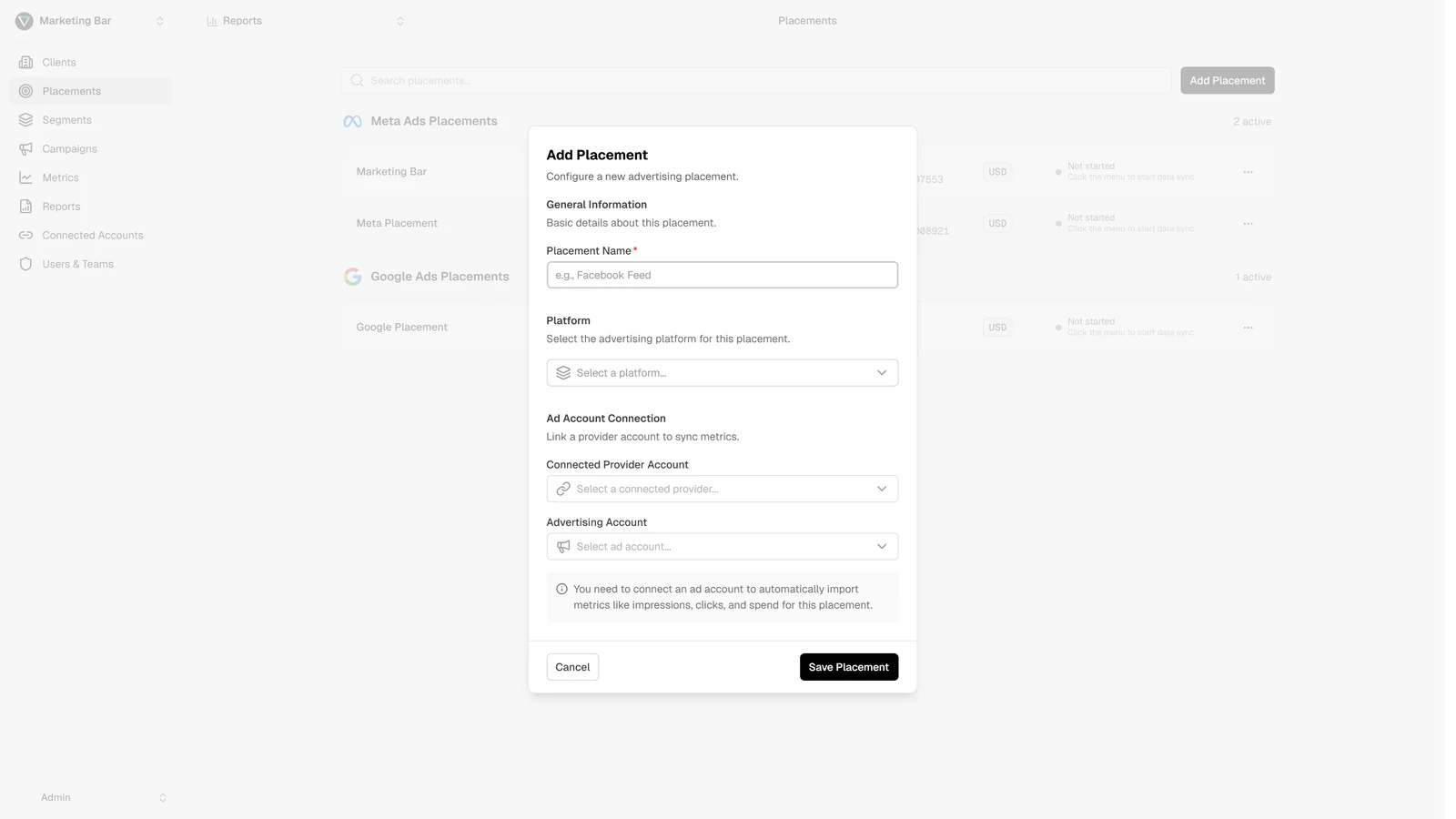
Fields
Name (required)
A human-readable label for this placement. Conventional patterns:
- Acme · Google Search
- Acme · Meta Reels
- Acme · Performance Max
The name shows up in placement lists, in the report drawer when you pick placements for a report, and inside reports themselves. It's editable later.
Platform (required)
Pick Meta or Google Ads from the dropdown. The dropdown shows two options with help text:
- Meta — Facebook, Instagram, Messenger.
- Google Ads — Search, Display, YouTube.
After you select the platform, Level filters the next two dropdowns to ad accounts of the matching kind.
Connected provider account (required)
The OAuth login Level uses to read this ad account. The dropdown lists every connected account of the chosen platform — typically your own Google or Facebook login, but it could be a teammate's if you share a workspace.
If the right login isn't in the list, jump to Connected accounts and add it, then come back here.
Advertising account (required)
The actual ad account inside the chosen connected login. The dropdown lists every account that login can read — for an MCC manager account this can be dozens.
Each entry shows:
- Name — the ad account name on the platform.
- External ID — the Google Ads customer ID or Meta
act_…ID. - Currency — what Meta/Google reports for the account.
A Refresh button next to the dropdown re-pulls the list straight from the platform — useful if a new account was just granted to your login and you don't want to leave the modal to refresh on the connected-accounts page.
Submit
Click Save. Level creates the placement and:
- The new row appears in the placements list under the right platform group.
- The fetch status flips to Initial load scheduled and then Initial load running.
- The card subscribes to live progress; the status pill updates in real time without you reloading.
For a single ad account the initial load is usually a couple of minutes. For an MCC with many sub-accounts and a long history it can take longer — you can keep using the rest of the app while it finishes.
What you can change later
Once a placement exists, only the name is editable. The platform, the connected provider account, and the advertising account are locked — they define the data identity of the placement. To wire a different ad account into the client, create a new placement and delete the old one.
See Managing placements for edits, syncing controls, and deletion.