Managing placements
Edit a placement's name, control its sync (start, stop, retry), and delete it when you're done.
After a placement is up and running, you'll mostly leave it alone. The exceptions: rename it, pause/resume its sync, retry after an error, or delete it.
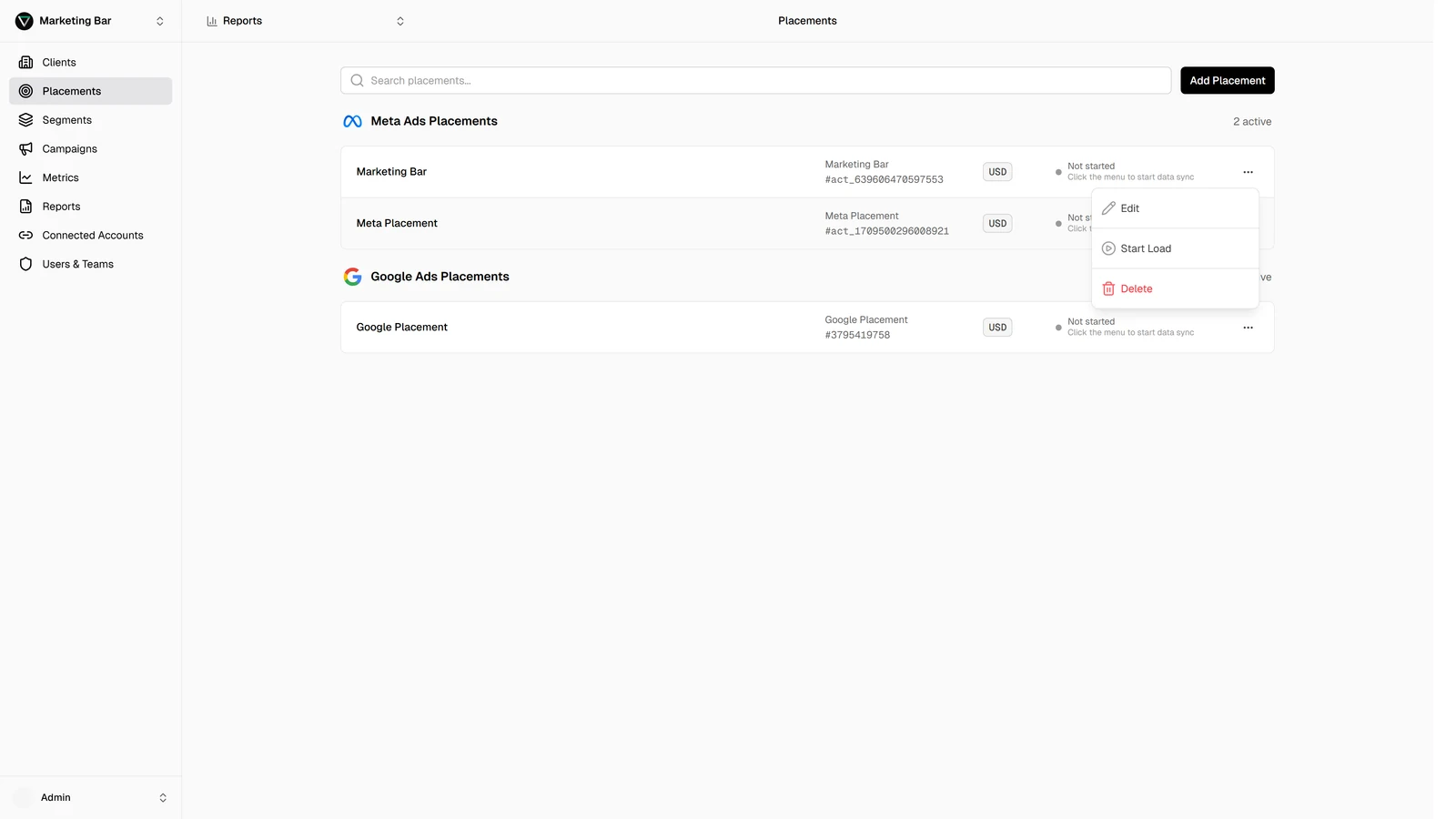
Editing
Click Edit on a placement row. The same modal opens — but in edit mode only Name is editable. Platform, Connected provider account, and Advertising account are read-only.
This is intentional: a placement's identity is which ad account on which platform on which login. Changing any of those would mean a new placement, not an edit. To re-target, create a new placement and delete the old one.
Sync controls
Each placement row has a contextual action that depends on its current status:
| Status | Available action |
|---|---|
| Not started, Stopped | Start — begin the initial load (or resume scheduled syncs). |
| Active, Running, Backfill running | Stop — pause future scheduled syncs. The data already pulled stays. |
| Initial load failed, Failing, Backfill failing | Retry — try the failed step again. |
Stop is non-destructive: nothing already pulled is removed. Start resumes syncs from the current state. Retry re-runs the most recent failed step.
Deleting
The action menu has a Delete option. Confirm in the dialog and Level removes the placement.
Reports that referenced the deleted placement still exist, but the placement won't appear in their data. If a report has no remaining placements after a deletion, the report opens but its tables are empty; edit the report to attach different placements.
Once a placement is deleted, the historical data Level pulled into that placement is no longer available in new reports. If you need it back, recreate the placement and Level re-pulls — but how far back depends on what the platform still exposes.
Live updates
The placements page shows status changes as they happen — no need to reload. The status pill flips through Initial load scheduled → Initial load running → Active in real time.
If you lose network or close the laptop for a while, reload the page to resume live updates.
Permissions
Edit, Start, Stop, Retry, and Delete are gated by role. If your role doesn't grant placement management on the active client, the action menu is hidden — you can still see placement status but can't change anything.